How to Fix Ethernet Connected But Shows No Internet
Posted July 24, 2023
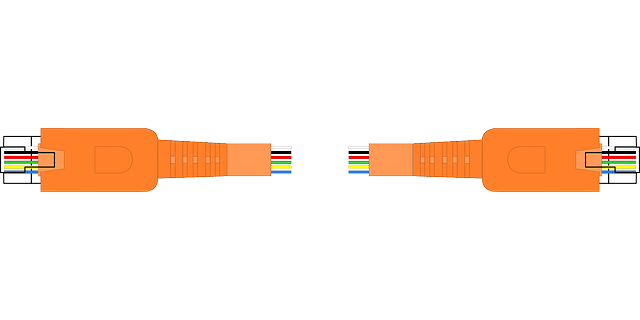
Just connected your ethernet cable to your PC, tried to browse but got that annoying notification no internet, checked your routers or any other device but noticed they are accessing the Internet? These mainly happen with Windows devices. These are the easy steps you can follow to fix this problem.
Check the ethernet adapters.
Ethernet adapters may be one of the reasons why you may not be able to browse. You need to check on the adapters, and if disabled, you should enable them to access the Internet. On Windows 10, this can be quickly done by clicking on Windows, and I keys to access the settings. Click on the network and internet option. Select the ethernet option, and if disabled, you should enable it.
Ethernet-enabled but network unidentified
Your ethernet may be enabled, but your computer may show an unidentified network. Unidentified network problem may be common with Windows computers. To fix this, hit on Windows and I keys to access the settings, select the network and adapter options, click on the ethernet option and disable and enable it. You should be able to see the wired connection and access the Internet.
Check your cable
A broken cable may also be why you are not in a position to access the Internet. To quickly know if your line has the problem replace it with another thread and check if you can access the Internet. If your cable is broken, you should replace it with a working one.
Check on your router.
In some instances, your router could be the problem. Some routers may require a restart when connecting to a computer through an ethernet connection. Restart your router, and if you get access to the Internet, you need to purchase another one. Also, if there is no internet access, you need to check on the interface of your router and check whether the router could be on the block list.
Troubleshoot your computer
Done all of the above procedures, but the problem persists? You should try troubleshooting your device. To troubleshoot your PC, go to settings and select the troubleshoot option. Click on additional troubleshooters, select the internet connections, and click the run troubleshooter button. After detecting the problems, fix the problem and close the troubleshooter.
I hope you found this helpful!
More Related Articles:
-

HOW TO FIX WINDOWS 11 CRASHING ISSUES
Have you already upgraded your operating system to the latest Windows operating system (Windows 11)? This will post discuses tips fixing Windows 11
Jul 24, 2023
-
Ways that you are using your computer wrongly
You might be using your computer and doing things that unknowingly destroy your PC. Here are a few ways in which you might be doing and ruining your
Jul 24, 2023