How to Create Custom Dialogs In React Native
Posted August 22, 2023

React Native allows you to create dialogs UI elements. Dialogs are used to display important information or ask for user input. React Native provides a built-in Modal component. It allows you to create custom dialogs for your react application. A dialog component displays content on top of the current screen. It can be dismissed based on user actions.
This article will guide you and teach you how to create and utilize custom dialogs in React Native.
Setting up the Application
Expo is an open-source tool built around React Native. It allows you to build and deploy React Native mobile apps. Expo provides a set of tools for building mobile applications for iOS and Android. Here you will use Expo to create the application.
Therefore, in your preferred directory, run the following command to initialize a React Native application using Expo:
npx create-expo-app custom_dialog
Once the installation is complete, proceed to the newly created directory:
cd custom_dialog
Start the development environment:
# android

npm run android

# ios

npm run ios
Setting up the State for the Dialog
A state is an object that holds the data and information needed for a component to render correctly. Each time the state of a component changes, the component will re-render itself to reflect the new state. You need to set a state in dialogs to track the visibility of the dialog components. Therefore, you will ne to create a state to hold the dialog visibility state. When the state changes, the component will render to display the dialog.
In your app.js file, import the state hook for creating states from react:
import { useState } from "react";
In the same file, navigate to the render function and create a state definition for dialog visibility as follows:
const [isVisible, setVisible] = useState(false);
Likewise, create a function to toggle the visibility of the dialog as follows:
const toggleVisibility = () => setVisible(!isVisible);
Showing the Dialog Based on the State
Using the above states, it is now easy to track the dialog visibility. To display a dialog, navigate to your project app.js file and import the StyleSheet, Text, View, Modal, Button, and Dimensions components from react-native:
import {
  StyleSheet,
  Text,
  View,
  Modal,
  Button,
  Dimensions,
} from "react-native";
Get the dimension for the application window:
const { width } = Dimensions.get("window");
In the same app.js file, inside the parent View component, add a Button component for triggering the dialog:
<Button title="Enter Your Pets Name" onPress={toggleVisibility} />
Creating a dialog in React Native involves importing the Modal component and then using it in a component. The Modal component can be configured with various props such as visible, animationType, and onRequestClose. Beneath the above button, add the modal component for dialogs as follows:
<Modal
  animationType="slide"
  transparent
  visible={isVisible}
  presentationStyle="overFullScreen"
  onDismiss={toggleVisibility}
>
  <View style={styles.modalContainer}>
    <View style={styles.modalView}>
      <Button title="Close Button" onPress={toggleVisibility} />
    </View>
  </View>
</Modal>
To style the component, add the following styles to your app.js file as follows:
- For styling the
modalContainer:
modalContainer:{
flex:1,
alignItems:'center',
justifyContent:'center',
}
- For styling the
modalView:
modalView:{
alignItems:'center',
justifyContent:'center',
position:"absolute",
elevation:5,
backgroundColor:"#fff",
height:180,
width:width*0.8,
borderRadius:7
}
Your styles definition should be similar to the following code block:
const styles = StyleSheet.create({
container: {
flex: 1,
backgroundColor: '#fff',
alignItems: 'center',
justifyContent: 'center',
},

modalContainer:{
flex:1,
alignItems:'center',
justifyContent:'center',
},

modalView:{
alignItems:'center',
justifyContent:'center',
position:"absolute",
elevation:5,
backgroundColor:"#fff",
height:180,
width:width*0.8,
borderRadius:7
}
});
Adding an Input for Interaction with the Dialog
To add test inputs to your dialogs, navigate in the app.js and:
- Add an import for the
TextInputcomponent:
import { TextInput } from "react-native";
- Add a state for the pet Name:
const [petName, setPetName] = useState("");
- Inside the View for the modal, add the text input component:
<TextInput
  placeholder="Enter Your Pet Name"
  value={petName}
  onChangeText={(value) => setPetName(value)}
/>
- Beneath the modal, show the pet name if it is set:
{
  petName && (
    <View>
      <Text>Your Pet Name is {petName}</Text>
    </View>
  );
}
- Your render function should be similar to the following:
return (
  <View style={styles.container}>
    <Button title="Enter Your Pets Name" onPress={toggleVisibility} />

    <Modal
      animationType="slide"
      transparent
      visible={isVisible}
      presentationStyle="overFullScreen"
      onDismiss={toggleVisibility}
    >
      <View style={styles.modalContainer}>
        <View style={styles.modalView}>
          <TextInput
            placeholder="Enter Your Pet Name"
            value={petName}
            onChangeText={(value) => setPetName(value)}
          />

          <Button title="Close Button" onPress={toggleVisibility} />
        </View>
      </View>
    </Modal>

    {petName && (
      <View>
        <Text>Your Pet Name is {petName}</Text>
      </View>
    )}

    <StatusBar style="auto" />
  </View>
);
Testing the App
The dialog is now set up. Ensure your development server is up and running. To run and test it run the application using the following command:
# android
npm run android

# ios
npm run ios
You should be able to view the following screens:
Once the application is launched, you will get the following home screen:

Click the button to launch a dialog:
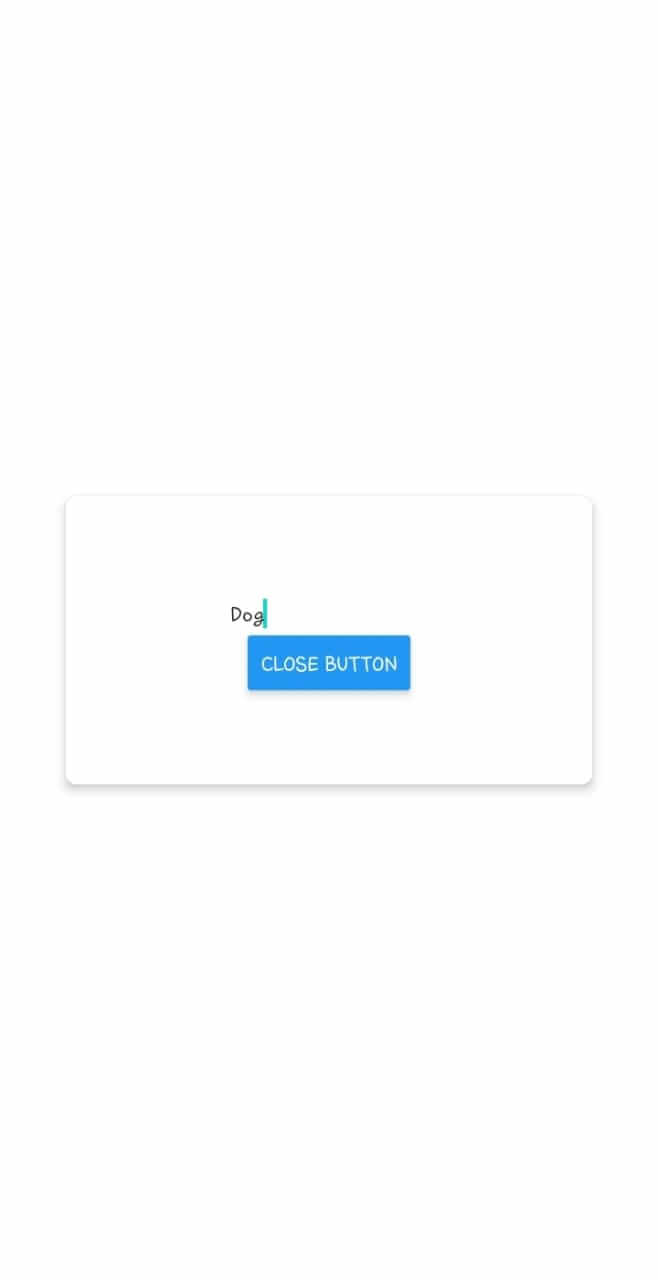
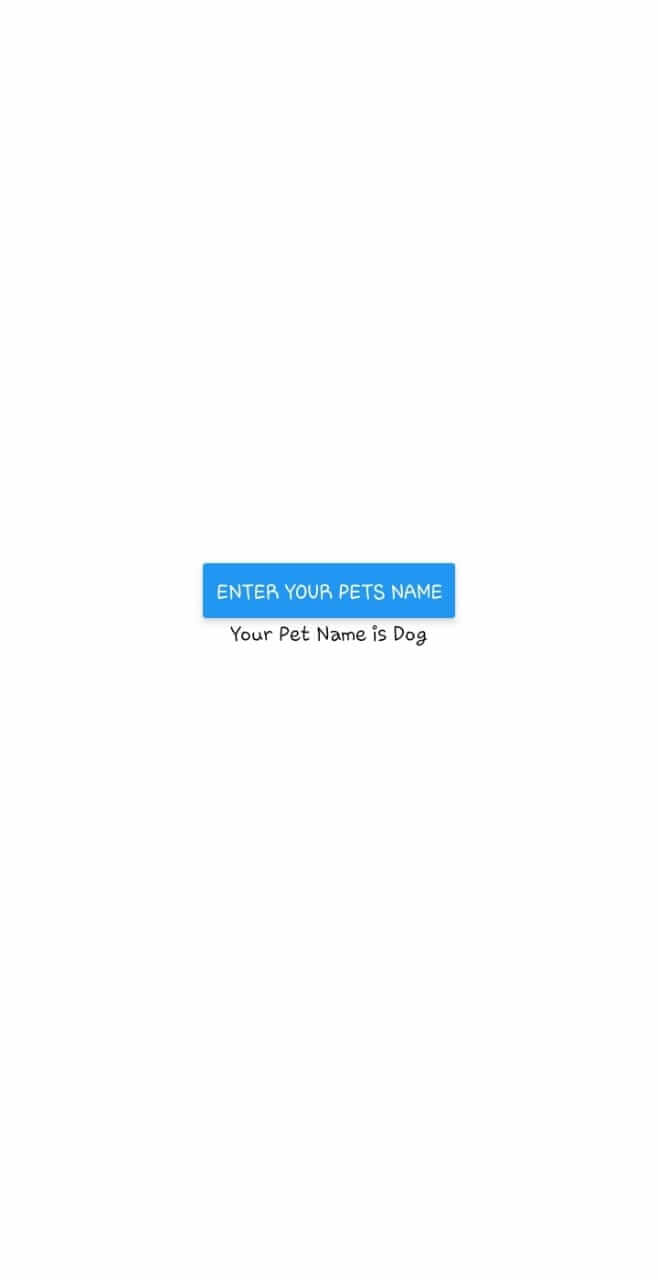
In the above dialog, add a test input and click close to hide the dialog. This will display the test input on your home screens as follows:
Conclusion
This guide has used the Modal component to create React Native custom dialogs. Additionally, there are third-party libraries available that provide additional functionality and customization options for dialogs. For example, you can use the react-native-dialogs library. It provides a set of customizable dialogs that can be easily integrated into a React Native application..